What Is Accessibility in eLearning? WCAG and Section 508 Explained
Sep 21, 2026
What Is Accessibility in eLearning? WCAG and Section 508 Explained
By Dr. Robin Sargent · Founder, IDOL Academy · Last updated: September 10, 2026 · 10 min read
Quick answer
Accessibility in eLearning means building online courses that people with disabilities can perceive, operate, and understand. The technical standard is WCAG, usually version 2.1 at Level AA. Section 508 is the United States law that makes that standard a legal requirement for federal agencies and the vendors who work with them.
In this article
Accessibility in eLearning means designing an online course that people with disabilities can perceive, operate, and understand without needing a separate version built for them. Captions. Alt text. Keyboard navigation. Readable contrast. Screen reader support. Two things govern the work: the WCAG standard, which tells you what to build, and Section 508, which tells you when the law requires it.
What accessibility in eLearning actually means
Here is the version nobody gives you when you start. Accessibility is not a compliance chore you bolt on at the end. It is a design constraint you accept at the beginning, exactly like a runtime limit or a brand palette. Designers who treat it as a final review step rebuild their courses. Designers who treat it as a starting condition ship once.
The World Wide Web Consortium organizes the whole topic around four principles, and they are worth memorizing because every specific rule rolls up into one of them. Content must be perceivable, operable, understandable, and robust. People shorten it to POUR. In an eLearning context it breaks down like this.
- Perceivable. Someone who cannot see your slide can still get its content. That means alt text on meaningful images, captions and transcripts on video and narration, and no information carried by color alone.
- Operable. Someone who cannot use a mouse can still finish your course. Every button, hotspot, drag item, and Next control reachable and activatable from the keyboard, in an order that makes sense.
- Understandable. Instructions and feedback read clearly. Navigation behaves the same way on every screen. An error message says what went wrong and what to do next.
- Robust. The output works with assistive technology, and keeps working when the browser or the screen reader updates.
Notice something about that list. Most of it is writing. Alt text is writing. Captions are writing. Clear instructions and useful error feedback are writing. The engineering piece is real, but the majority of accessibility work in a typical course sits squarely inside skills a teacher or a trainer already has.
WCAG, Section 508, and the ADA: how they fit together
These three terms get used interchangeably in job postings and project briefs, which causes a lot of confusion. They are not the same kind of thing.
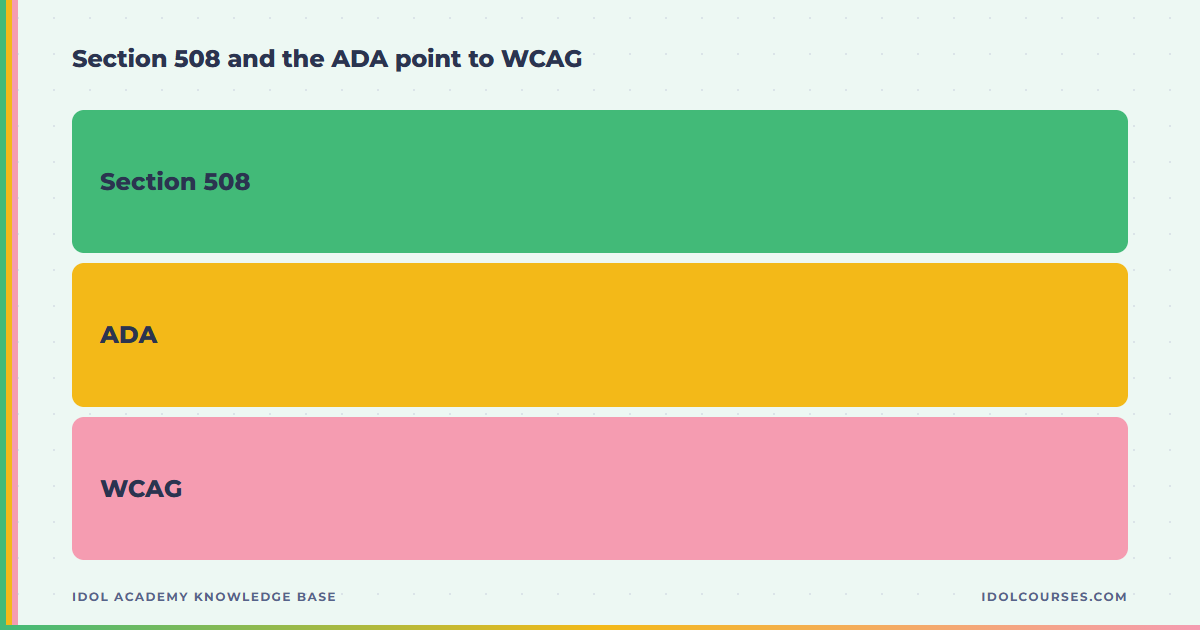
WCAG is the technical standard, published by the W3C Web Accessibility Initiative. It is a numbered list of success criteria sorted into three conformance levels: A, AA, and AAA. It is not a law. It is the ruler everyone measures with.
Section 508 is United States law, part of the Rehabilitation Act. It requires federal agencies to make their electronic content accessible, and it reaches every vendor and contractor producing content for them. The 2017 refresh tied Section 508 directly to WCAG 2.0 Level AA, which is why the two names travel together. Section508.gov publishes the requirements and the testing process agencies use.
The ADA is the Americans with Disabilities Act. It is broader civil rights law and it does not name a technical standard for course content. Courts and settlements have repeatedly pointed at WCAG anyway, so organizations worried about ADA exposure end up building to the same target.
| Name | What it is | Who it applies to | What you build to |
|---|---|---|---|
| WCAG 2.0 | Technical standard, 2008 | Anyone, voluntarily or by reference | Level AA, 38 criteria |
| WCAG 2.1 | Technical standard, 2018 | The common working target today | Level AA, adds mobile, low vision, and cognitive criteria |
| WCAG 2.2 | Technical standard, 2023 | Organizations moving ahead of the minimum | Level AA, adds focus visibility and drag alternatives |
| Section 508 | US federal law | Federal agencies and their vendors | WCAG 2.0 Level AA |
| ADA | US civil rights law | Employers, public accommodations | No named standard, WCAG used in practice |
The practical takeaway for a new instructional designer is short. Build to WCAG 2.1 Level AA. It satisfies Section 508, it holds up under ADA scrutiny, and it is what a client means when they say the course needs to be accessible and then cannot tell you which version.
The seven checks that catch most accessibility problems
WCAG 2.1 Level AA contains 50 success criteria. You do not memorize them. You build a habit around the handful that account for the majority of failures in course content, and you keep the full standard open for the edge cases.
Here is the list I teach, in the order I run it.
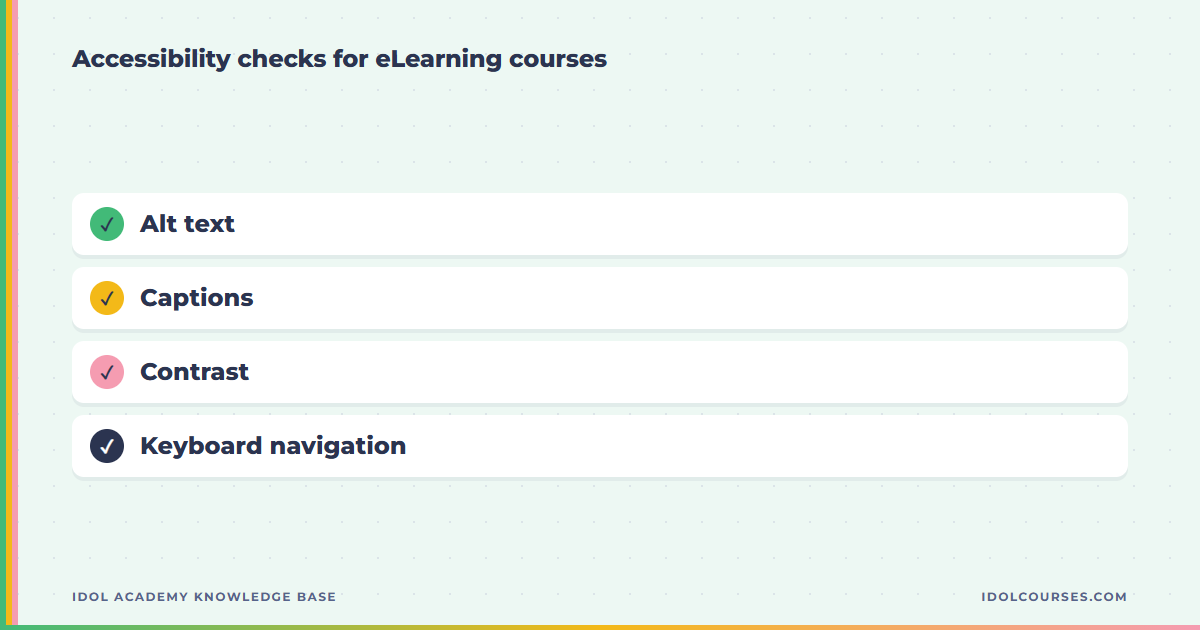
- Alt text on meaningful images. Describe the information the image carries, not the image. A photo of a technician checking a gauge is not "technician photo." It is "technician reading a pressure gauge showing 40 PSI." Decorative images get empty alt text so a screen reader skips them entirely.
- Captions and transcripts. Captions on every video and every narrated screen. A transcript as well when the audio carries content the visuals do not.
- Color contrast. Body text needs a 4.5 to 1 ratio against its background. Large text and interface components need 3 to 1. Brand palettes fail this constantly, so check early, before a client approves a look you cannot ship.
- Color is never the only signal. If red means wrong and green means right, add an icon or a word. Color vision deficiency is common enough that you will have learners who cannot tell those two states apart.
- Keyboard operability and focus order. Tab through the entire course. Every control reachable, every focus state visible, and the order matching the reading order rather than the order you happened to drop objects on the slide.
- No timing traps. Auto-advancing screens, timed knowledge checks, and slides that move on before a screen reader finishes speaking all fail. Give the learner control of the pace.
- Real heading structure and link text. Headings marked as headings rather than large bold text. Link text that describes its destination, so a screen reader user hearing a list of links out of context knows where each one goes.
Run those seven and you catch most of what an audit would flag. The interactions that need genuine care are the custom ones: drag and drop, hotspot exploration, branching simulations. For each of those, WCAG 2.2 asks a fair question you should ask yourself anyway. Is there a way to complete this without the dragging?
Want to see if instructional design is the right move for you?
IDOL Academy is a GNPEC-authorized 24-week program that combines 16 Credly-verified credentials, built-in AI training, and a real internship milestone, all at a price point below comparable bootcamps.
Try IDOL Academy FreeHow accessibility works inside your authoring tool
The tools help. They do not do the work for you. If you are new to authoring software such as Storyline, Rise, and Captivate, here is what each one hands you and what it leaves on your desk.
Articulate Storyline
Storyline gives you an alt text field on every object, a focus order panel you can reorder by hand, a closed caption editor, and accessible text styling. It also lets you hide objects from accessibility tools, which is the correct move for decorative shapes and the wrong move when someone uses it to silence a warning. You write the alt text. You set the focus order. Storyline will happily publish an inaccessible course if you let it.
Articulate Rise
Rise produces accessible output for most block types without configuration, because the blocks are pre-built and the responsive layout is handled for you. Your remaining jobs are alt text, captions on embedded video, contrast on any custom colors, and resisting the urge to put meaning in an image of text.
Adobe Captivate
Captivate ships with accessibility settings at the project level plus per-object accessibility names, and it has long carried Section 508 reporting built into its publishing options. Same rule applies. The settings are a container. You supply the content.
One more piece that trips people up. Accessibility does not stop at the course file. The learning management system that delivers your course has its own player, its own navigation, and its own login screen. A perfectly accessible course inside an inaccessible player is still a barrier. When you scope a project, ask who owns the platform side.
"Accessibility is not a feature you add at the end. It is a decision you make at the beginning, and then keep." — Dr. Robin Sargent
Why accessibility belongs in your portfolio
Here is the part that matters if you are trying to get hired. Accessibility appears as a line item in a large share of instructional design postings, and hiring managers ask about it because it is expensive to fix late and awkward to explain to a legal team. Most candidates answer the question with a definition. Almost nobody answers it with evidence.
Be the second kind of candidate. When you build a portfolio piece, add a short accessibility note next to the sample. Three or four sentences is plenty. Name the level you built to. Name the checks you ran. Name the one thing you had to redesign because of what you found, because that sentence proves you actually did the work rather than reading about it.
Something like this. "Built to WCAG 2.1 AA. Keyboard tested end to end, contrast verified on all text and controls, captions on all narrated screens. The original drag and drop sort had no keyboard path, so I rebuilt it as a multi-select with the same feedback logic."
That paragraph does more for you in an interview than a certificate would. It shows judgment. It shows you shipped something and tested it. And it gives your interviewer an obvious follow-up question that you already know the answer to.
There is also the plain argument, which I would make even if it did nothing for your job search. Every audience you design for includes people with disabilities, whether or not anyone told you so in the kickoff meeting. Building a course that locks them out is not a technicality. It is a design failure, and you are the designer. The U.S. Bureau of Labor Statistics tracks ongoing demand for instructional coordinators, and the organizations hiring hardest are exactly the ones with accessibility obligations already on the books.
Do it messy applies here too. Your first accessible course will be imperfect. Run the seven checks anyway, write down what you found, fix what you can, and note what you could not. That is a real practice. Waiting until you feel like an accessibility expert is how people ship nothing for a year.
Frequently asked questions
What is accessibility in eLearning?
Accessibility in eLearning means building online courses that people with disabilities can perceive, operate, and understand. In practice that covers captions on video, text alternatives for images, keyboard navigation, readable color contrast, and screen reader support. Most organizations measure it against the Web Content Accessibility Guidelines, usually WCAG 2.1 Level AA.
What is the difference between WCAG and Section 508?
WCAG is the technical standard. Section 508 is United States federal law that requires electronic content from federal agencies and their contractors to meet an accessibility standard, and since the 2017 refresh that standard is WCAG 2.0 Level AA. So WCAG tells you what to build. Section 508 tells you when you are legally required to build it.
Which WCAG level do most eLearning courses need to meet?
Level AA is the working standard for almost every corporate and government eLearning project. Level A is the minimum floor and leaves real barriers in place. Level AAA is not expected across an entire course because some of its criteria cannot be met for all content types. If a client says accessible without naming a level, ask, and assume AA until they answer.
Do instructional designers need to know accessibility to get hired?
Accessibility shows up in a large share of instructional design job postings, often as a bullet asking for familiarity with WCAG or Section 508. You do not need a certification to answer the question well. You need to name the standard, describe the checks you run, and point to a portfolio piece where you ran them.
Can you make Articulate Storyline and Rise courses accessible?
Yes. Storyline supports alt text, a defined focus order, closed captions, and accessible text styling, and Rise produces accessible output by default for most block types. The tool does not make the course accessible on its own. A designer still writes the alt text, sets the tab order, checks contrast, and tests with a screen reader.
How do you test an eLearning course for accessibility?
Run three passes. First, put the mouse away and move through the entire course with the Tab, Enter, and arrow keys. Second, check color contrast on every text and interface element with a contrast checker. Third, play the course through a screen reader such as NVDA or VoiceOver and listen to whether the narration makes sense in order.
Start with the seven checks
Accessibility in eLearning comes down to one decision made early and kept: build to WCAG 2.1 Level AA from the first storyboard instead of auditing your way backward from a finished course. Learn the seven checks, run them on your next portfolio piece, and write down what you found.
Want to see if instructional design is the right move for you?
IDOL Academy is a GNPEC-authorized 24-week program that combines 16 Credly-verified credentials, built-in AI training, and a real internship milestone, all at a price point below comparable bootcamps.
Try IDOL Academy Free